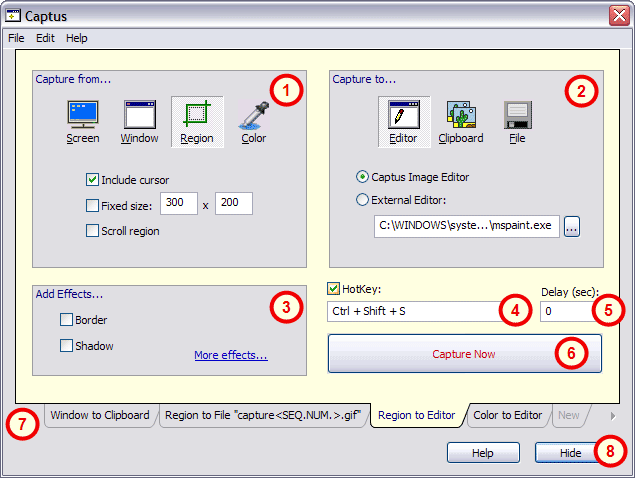
Captus Scenario is a set of capture settings, including capture source, destination, effects and other. Each scenario can have unique Hot Key for easy access. Captus Main Window is a scenario setup and editing center.
 |
Capture from ... | |||||||||||||||||||||
Captus can perform capturing in one of three modes:
Additional Settings:
|
 |
Capture to... | |||||||||
Captus can send captured image to one of three destinations:
|
 |
Add Effects |
| Specified effects will be applied to an image captured with this scenario. Link More ... will open Effects Settings Dialog. |
 |
Hot Key |
| Hot Key can be applied to a Capture Scenario. This keyboard shortcut can be used across the Windows system to invoke the Scenario. Hot Keys of saved scenarios are also shown in the pop-up menu on Captus System Tray Icon. |
 |
Delay |
| Delay setting allows you to take some time before the actual capture occures. You can reposition the mouse, or reorganize display in any way needed before screenshot is taken using this setting. |
 |
Capture Now |
|
Capture Now button activates currently selected capture scenario. Once this button is clicked the
Captus Main Window gets hidden giving way to underlying windows so your capture session is not affected
by the Captus GUI. Note: If you're clicking this button with the mouse and Include Cursor setting is on for this scenario - the cursor in the final image will appear right in the place of the click. It can still be modified later in the editor, but you want to have your cursor located in the specific place you can do that and then use Scenario Hot Key instead of Capture Now button. |
 |
Capture Scenarios |
| Tabs along the bottom of the window represent different capture scenarios. Edit, Add New or change HotKey to customize Captus for your own needs. |
 |
Hide |
| Hide button minimizes Captus Main Window, but keeps application running. While minimized Captus can be accessed via Captus System Tray Icon or using hot keys. |