When Capture Scenario is started by user, Captus turns the screen in a special mode that we call Capture Mode.

While in Capture Mode the program takes control of mouse movements and keyboard inputs and places Magnifier Window with capture information on top of all other windows on the screen.


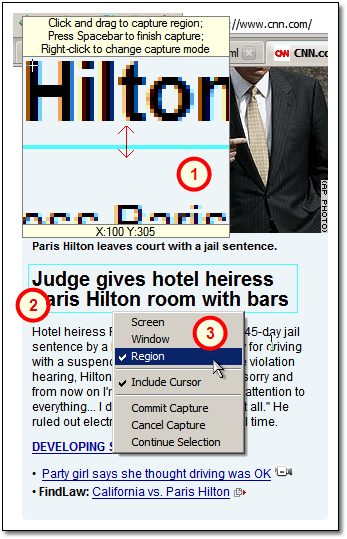
Capture Region Mode

Magnifier Info Window
Magnifier Window displays magnified fragment of the screen around current position of the mouse. This window also displays information about currently selected region and has helpful hints on various actions that can be performed while in Capture Mode.

Working with Region and Multiple Selection
Region selected by mouse (click-and-drag) is shown with blue rectangular border. This rectangle is mouse-ready, which means the region can be resized and moved around. Multiple regions can be selected - the combined area will be captured.

You can switch between capturing modes using Pop-up Menu (see #3). At any time during the capture all the areas selected for capture so far will be seen as blue rectangles and can be resized and moved around.

Pop-up Menu
Pop-up menu can be accessed by mouse right-click anywhere on the screen. It provides capability of dinamic switching of Capture From mode (Screen, Window, Region), gives access to Include Cursor setting and has Cancel/Continue/Commit commands. Committing the capture will exit the Capture mode and place captured image into requested destination. Other ways of committing the capture are Spacebar or Enter keys.


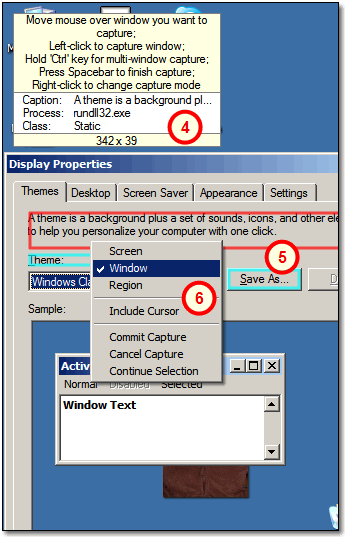
Capture Window Mode

Information Window
Information Window displays information about the window currently highlighted. This window also displays helpful hints on various actions that can be performed while in Capture Mode.

Working with Windows and Multiple Selection
Captus will highlight with red color the borders of the windows you mouse-over. Once you do the mouse-click the current window will be captured. If you want combined area of multiple windows to be captured - hold Ctrl key while mouse-clicking. The capture will not be committed until you explicitly say so (see #6). All windows selected so far will be marked with the blue rectangles the same way multiple regions are.

You can switch between capturing modes using Pop-up Menu (see below). At any time during the capture all the windows selected for capture so far will be seen as blue rectangles.

Pop-up Menu
Pop-up menu can be accessed by mouse right-click anywhere on the screen. It provides capability of dinamic switching of Capture From mode (Screen, Window, Region), gives access to Include Cursor setting and has Cancel/Continue/Commit commands. Committing the capture will exit the Capture mode and place captured image into requested destination. Other ways of committing the capture are Spacebar or Enter keys.